April 15, 2026
How to translate a French document and keep the formatting
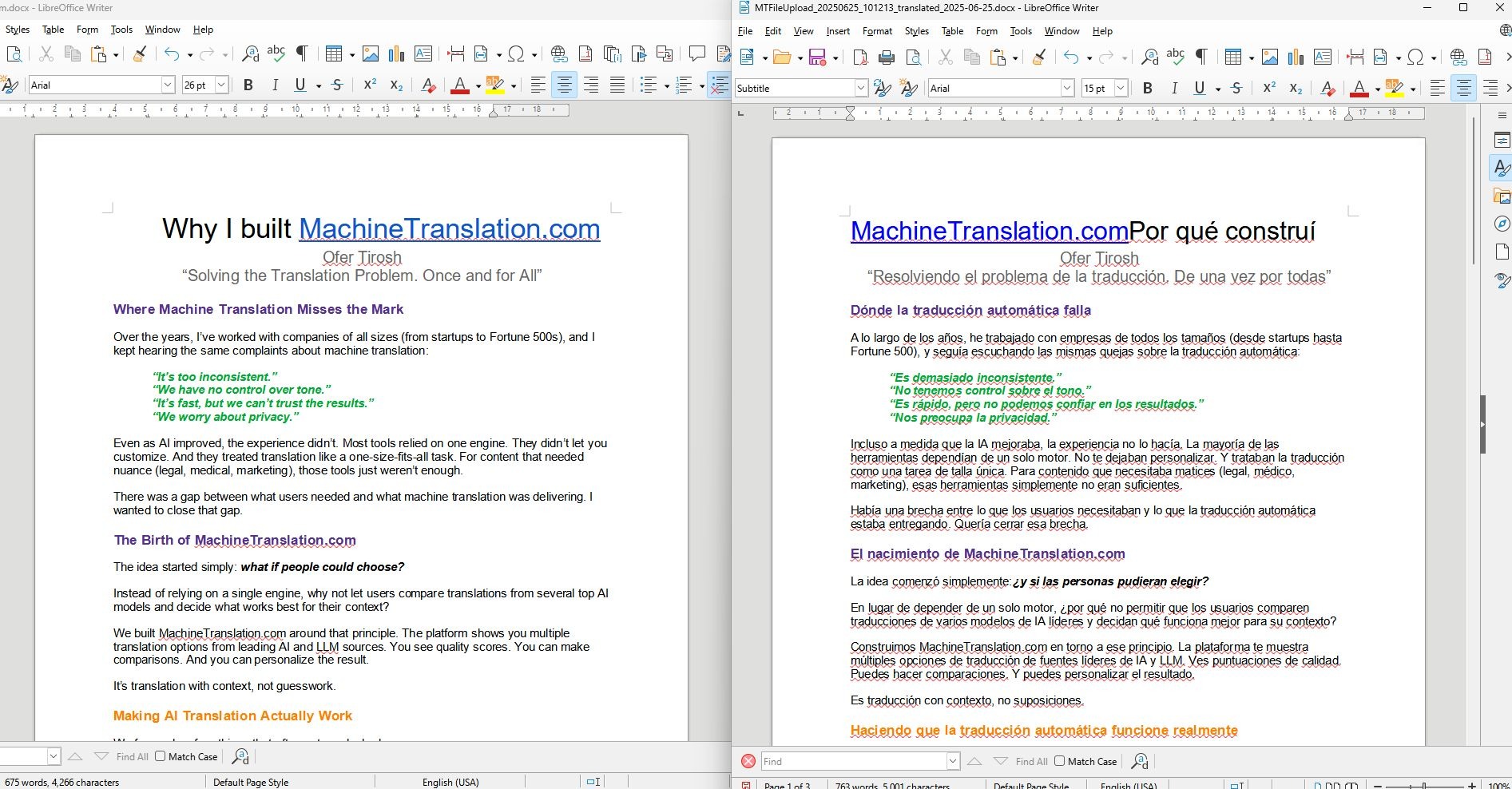
You have a French contract, a product manual, or a business report. You need it in English (or the other way around) and it needs to look exactly the way it does now: same table structure, same column widths, same fonts, same page breaks.
Then you paste the text into a translation tool, hit translate, and get back a block of plain text. The table is gone. The headers are scrambled. A multi-page formatted report has been compressed into an unformatted wall of words.
This is not a fringe problem. It is the default outcome when you use the wrong method. And it is entirely avoidable if you know why it happens and which tools actually handle it correctly.
This guide explains the mechanics of why French document translation breaks formatting, then walks through a step-by-step process for getting a translated file that looks as close to the original as possible – without reformatting it manually afterward.
Why translating French documents breaks formatting in the first place
The problem is structural. Most people's first instinct when they need to translate a document is to open it, select all the text, copy it, paste it into a translation tool, and copy the result back. This workflow seems logical. It is also the most reliable way to destroy your document's formatting.
The text-expansion problem
French and English have different average word lengths and sentence rhythms. When translating from English into French, translated text routinely runs 15 to 25 percent longer than the original. That expansion is not cosmetic – it physically overflows cells, pushes text outside text boxes, and breaks carefully set column layouts. A table designed for English labels will not automatically accommodate French ones. A PowerPoint slide with tight text boxes will overflow when the French equivalent of a short English phrase turns out to be nearly double the length.
This is a problem at the content level, but it becomes visible at the formatting level. If the tool you are using only returns translated text without understanding the container it sits in, no amount of careful translation will save your layout.
How copy-paste strips structure
When you copy text from a Word document or PDF and paste it into a text box, you are copying characters – not structure. The document's underlying XML (in the case of .docx files) or layout metadata (in the case of PDFs) is left behind. The translation tool sees a continuous stream of text. It has no awareness of which words belong in which table cell, which paragraph style should be inherited, or where one column ends and another begins.
When that translated text is pasted back, the user is essentially reconstructing the document from scratch, using translated words inside an empty container. The formatting work falls entirely on the person doing the translation.
Why PDFs are the worst offenders
PDF files present a particular challenge because the format is designed for presentation, not for editing. A PDF does not store "a table with three columns and four rows." It stores visual instructions: draw a line here, place text at these coordinates, render this font at this size. When a translation tool attempts to extract text from a PDF and return it, the coordinate system that defines the layout is often discarded entirely.
The result is that translated PDF text arrives as a flat, unformatted block – or, in the case of scanned PDFs, may not be extracted at all without OCR processing. This is why translating a PDF while keeping its formatting requires a tool that can both extract text intelligently and reconstruct the visual layout around the translated content.
What "keeping formatting" actually means (and what it doesn't)
Before going into the how-to, it helps to be clear about what is realistically achievable – and what is not.
What file translation tools can preserve
Paragraph styles (headings, body text, captions)
Table structure (rows, columns, merged cells where the source file stores them as such)
Bold, italic, underline, and other inline character formatting
Text box positions in PowerPoint slides
Page margins and section breaks in Word documents
Header and footer content
What is difficult or impossible to guarantee
Pixel-perfect column widths after text expansion (French text in a narrow English column will still overflow if the column is genuinely too narrow)
Complex PDF layouts built from images, not text (scanned documents require OCR and may lose precise positioning)
Custom fonts that are not embedded in the file (a font that does not exist on the rendering system will substitute)
Formatting that is applied as a background image rather than a document style
Understanding this distinction saves a great deal of frustration. A good file translation tool will return a document that is structurally intact and requires minor tweaks – not one that is completely rebuilt, but also not necessarily one that is pixel-identical to the original.
Step-by-step: How to translate a French document without losing its layout
The core principle is simple: do not extract the text. Translate the file. Here is how to do that with MachineTranslation.com.
Step 1: Choose a tool that accepts file uploads, not just text
The distinction between a text-input translator and a file translator is critical. Text-input translators (including basic browser translation tools and many free tools) accept characters and return characters. They have no knowledge of the file structure those characters came from.
File translators accept the document itself, process the content while preserving the underlying structure, and return a translated version of the document – not just the translated text. MachineTranslation.com's file translation capability handles .docx, .pdf, .pptx, and other common formats directly.
Step 2: Upload your document directly
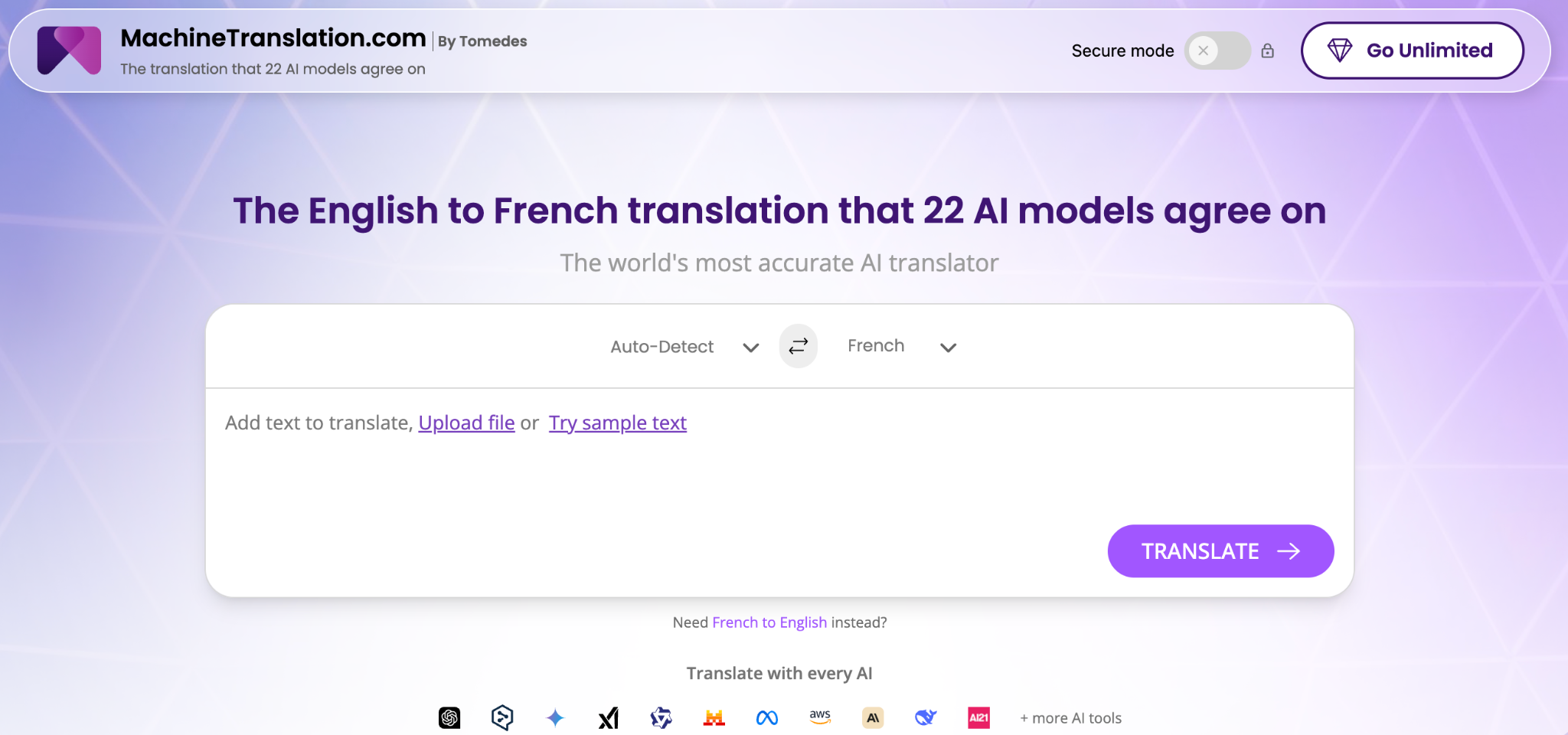
Go to MachineTranslation.com's English-French translation page and use the document upload option rather than the text input field. Drag and drop your file, or use the upload button to select it from your file system.
Do not open the document, copy the text, and paste it in. The moment you do that, you have already left the formatting behind.
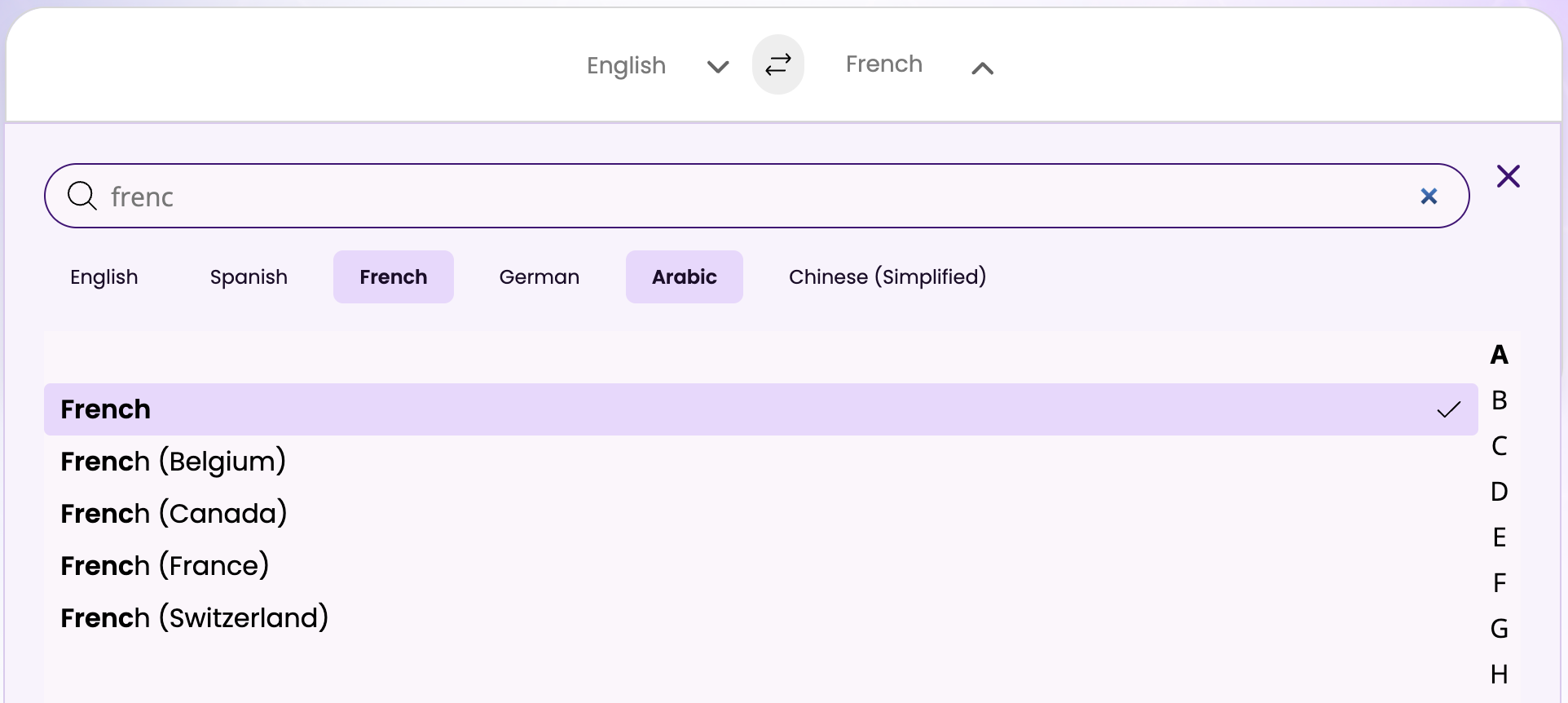
Step 3: Select your language pair
Confirm that your source and target languages are set correctly. For translating a French document into English, select French as the source and English as the target. For translating an English document into French, reverse the pair.
MachineTranslation.com also lets you run the same file through multiple translation engines (including DeepL, Google Translate, and Microsoft Translator) and compare the outputs side by side. This is useful for documents where terminology consistency matters, or where you want to verify that a specific technical phrase has been translated correctly across engines.
Step 4: Download and review the translated file
Once the translation completes, download the file. Open it in the same application you would use to edit the original – Word for .docx files, PowerPoint for .pptx files.
Expect to spend a few minutes reviewing. Check that:
Tables have retained their structure and that cell content reads correctly
Headers and footers are present
Section headings still use the correct styles
Text that expanded in translation has not overflowed its container (if it has, this is a layout adjustment, not a translation error)
In most cases, the adjustments needed are minor compared to the alternative of rebuilding the document from unformatted translated text.
Format-by-format guide: Word, PDF, and PowerPoint
Different file formats have different formatting risks. Here is what to know before you start.
Translating French Word (.docx) documents
Word documents store their structure as XML, which means a capable translation tool can parse the document's formatting instructions (paragraph styles, table definitions, character-level formatting) separately from its text content. When the translation is applied, the formatting instructions remain in place and the translated text slots in.
The main risk in Word translation is text expansion. French text running significantly longer than the English source will overflow narrow table columns, push text outside text boxes in complex layouts, and cause page breaks to fall in unexpected places. After downloading a translated .docx, review any tables and two-column layouts first, as these are most likely to need column-width adjustments.
For heavily formatted Word documents (annual reports, legal contracts with complex clause numbering, technical manuals with nested lists), file translation handles the structural work well. What it cannot do is make editorial decisions about how to handle expansion: whether to abbreviate, reflow, or restructure. Those decisions still require human review.
Translating French PDF documents
PDFs present the most complex formatting challenge of any common document type, for the reasons described above. The best results come from PDFs that were generated digitally (from Word, InDesign, or similar software) rather than scanned. Digitally generated PDFs contain extractable text; scanned PDFs contain images of text, which require OCR before translation is possible.
When uploading a PDF to MachineTranslation.com for translation, the tool will extract the text, translate it, and reconstruct the output as a new file. The fidelity of the reconstruction depends on the complexity of the original layout. Single-column documents with minimal graphic elements translate with high formatting fidelity. Multi-column magazine-style layouts or documents with heavily positioned text blocks may require more manual adjustment after translation.
For PDFs where formatting fidelity is critical (legal documents, certified translations, regulatory filings), consider converting the PDF to .docx first (using Adobe Acrobat or a similar tool), translating the Word document, and then generating a new PDF from the translated Word file. This approach gives the translation tool better access to the underlying structure.
Translating French PowerPoint (.pptx) files
PowerPoint presents a different challenge from Word and PDF: each slide is a canvas with independently positioned text boxes, images, and graphic elements. Text expansion in French means that a text box sized for English content will overflow when the French equivalent is longer.
The structural translation (matching translated text to the correct text box on the correct slide) is handled well by file translation tools. The layout adjustment after expansion is a design task.
A practical approach for French PowerPoint translation: after downloading the translated file, sort the slides by the amount of text on each slide, and review the densest slides first. These are most likely to have overflow issues. On slides with tight layouts, consider reducing font size by one or two points before adjusting the text box size, as this often resolves minor overflow without requiring a redesign.
Common formatting mistakes and how to avoid the
Copying text instead of uploading the file. Already covered above, but worth repeating: this is the single most common reason formatting is lost. Even if you plan to manually reformat the output, uploading the file saves significant time.
Translating a PDF without checking whether it is scanned. Open the PDF and try to highlight a word. If the highlight tool selects text, the PDF is digitally generated and will translate well. If the highlight tool cannot select text (or if it selects the entire page as an image), the PDF is scanned and will require OCR. Attempting to translate a scanned PDF without OCR produces blank or garbled output.
Ignoring text expansion until after translation. If you know your target language is French and you are creating a document that will be translated into it, design with expansion headroom. Give table cells more space than the English content needs. Use slightly smaller default font sizes. These decisions made before translation dramatically reduce the layout work needed after.
Using a translation tool without file support for a formatted document. Not all translation tools that claim to handle file uploads do so with the same fidelity. Basic tools may strip the file to plain text and return plain text, even when a file is uploaded. Test with a small, formatted sample before translating a large document.
Skipping post-translation revision. File translation handles structure. It does not handle every edge case in terminology, context, or style. A financial report translated from French to English may have all of its tables intact but still contain terminology choices that need review, particularly for industry-specific vocabulary. Treat file translation as the structural foundation, not the final step.
When should you use a professional translator instead?
File translation tools are well-suited to a specific range of use cases: internal documents, reference materials, content that needs to be understood rather than published, and first drafts that will receive human review.
There are situations where professional translation is the appropriate choice regardless of what automation can do:
Legally binding documents: contracts, court filings, immigration documents, and certified translations require human sign-off and, in many jurisdictions, a certified translator's seal
Content that will be published externally: marketing materials, website copy, and product content intended for French-speaking audiences should be reviewed by a native speaker with subject-matter knowledge, not just translated
Highly technical or specialized content: medical, pharmaceutical, legal, and engineering documents often contain terminology where translation errors have real consequences
Content with significant cultural nuance: humor, idiomatic expressions, and culturally specific references require human judgment that no translation engine reliably provides
For these cases, the right workflow is often a combination: use MachineTranslation.com's English-French translation to produce a structurally intact draft, then pass it to a professional translator for review and refinement. This reduces the amount of time the translator spends on formatting and first-pass translation, and concentrates their expertise on the decisions that actually require it.
FAQs
1. Can I translate a French PDF and keep the original layout?
Yes, with important caveats. Digitally generated PDFs (those created from software like Word or InDesign) translate with higher formatting fidelity than scanned PDFs, which contain images of text rather than extractable text. MachineTranslation.com's file translation tool processes digitally generated PDFs directly. For scanned PDFs, you will need OCR processing before translation. Complex multi-column or graphically dense layouts may require manual adjustment after translation, regardless of the tool use.
2. Why does my French document come back with different text lengths after translation?
French and English have different word and sentence lengths. Translating from English into French typically produces text that is 15 to 25 percent longer than the original. This is a property of the language pair, not an error in the translation. When the translated text expands, it can overflow containers (table cells, text boxes, columns) that were sized for the English original. This is a layout adjustment task, not a translation error.
3. Is it better to translate a Word document or convert it to PDF fit?
Translate the Word document in its .docx format. Word documents store their structure in XML, which translation tools can parse accurately. PDFs are designed for presentation, not editing, and translation tools have more difficulty reconstructing PDF layouts precisely. If you need a translated PDF as the final output, translate the .docx file first, then export the translated Word document as a PDF.
4. Does MachineTranslation.com support file translation for languages other than French?
Yes. MachineTranslation.com supports file translation across a wide range of language pairs. If you work with multilingual documents regularly, you can compare translation output across multiple engines (including Google, DeepL, and Microsoft) for the same file, which is useful for validating terminology or choosing the best output for a specific document type. See MachineTranslation.com's full range of language pair translation pages for supported combinations.
5. How long does file translation take on MachineTranslation.com?
Translation speed depends on file length and complexity, but most standard business documents (a 10-page Word report or a 15-slide PowerPoint) translate in under two minutes. Larger documents or complex PDFs may take longer. MachineTranslation.com processes files using the same underlying engines as its text translation, so accuracy is consistent with what you would get translating the same content in the text interface.