April 10, 2026
How to translate a Spanish document without losing the original formatting
You upload a Spanish contract. The translated Word file comes back with the headers in the wrong font, the signature table collapsed into a single column, and two paragraphs that have somehow merged into one. The content is there (sort of) but the document looks nothing like what you started with.
This is one of the most common frustrations with document translation, and it happens for specific, fixable reasons. The problem is not always the translation tool. Often, it is how the tool handles the file itself: how it extracts text, how it feeds it to the translation layer, and (critically) how it reconstructs the output.
This guide breaks down exactly why formatting breaks during Spanish-to-English (or English-to-Spanish) document translation, which formats are most vulnerable, and how to get clean results that preserve your original layout, fonts, tables, and structure.
Why formatting breaks during Spanish document translation
The short answer: translation tools were built primarily to translate text, not to manage file structure. When a document translator processes a Word file or a PDF, it has to perform at least four distinct operations – extract the source text, translate it, reinsert the translated text, and rebuild the file. Each step is an opportunity for the layout to break.
The encoding and font problem
Spanish uses characters that do not appear in standard ASCII: á, é, í, ó, ú, ñ, ü, ¡, ¿. When a translation tool extracts text from a document and that document uses an embedded or proprietary font, the output may fall back to a default system font – one that may not correctly render all the glyphs from the original. The result is a document that looks visually different even if the text itself is accurate.
This is especially common with PDFs that were exported from design tools (InDesign, Illustrator) rather than generated natively in Word. The font is baked into the visual layer, and extracting it for translation often means losing the original font family entirely.
How word expansion affects layout
Spanish and English do not exchange text at a 1:1 character ratio. On average, Spanish text is approximately 15-25% longer than its English equivalent. When a document is designed around a specific text length (tightly formatted headers, narrow table cells, precise text boxes in PowerPoint) and the translated text is significantly shorter or longer, the layout breaks. Text overflows cells. Columns compress. Footnote markers shift out of position.
A practical example: a three-column table designed to hold Spanish product descriptions will often overflow when those descriptions are translated into longer English equivalents, or appear visually sparse when translated from English into Spanish with the extra length not accommodated in the cell.
Why PDFs are the hardest format to preserve
PDFs are not structured documents in the same sense that Word files are. They are a rendered visual output – a snapshot of how a document looks, not a record of how it is built. When a translation tool processes a PDF, it typically uses optical character recognition (OCR) or text-layer extraction to identify the source text, then attempts to reinsert the translated text in the same visual positions.
This works reasonably well for simple, single-column PDFs with standard fonts. It works poorly (sometimes extremely poorly) for multi-column layouts, scanned documents, PDFs with embedded tables, or files that use complex typographic features like drop caps, pull quotes, or overlapping text boxes.
A format-by-format breakdown: Word, PDF, and PowerPoint
Translating Spanish Word (.docx) documents
Word files (.docx) are generally the most translation-friendly format because they are structured XML under the hood. A good translation tool can parse the document structure (headings, paragraphs, tables, footnotes, headers, footers), translate the text within each element, and reconstruct the file in the same structure.
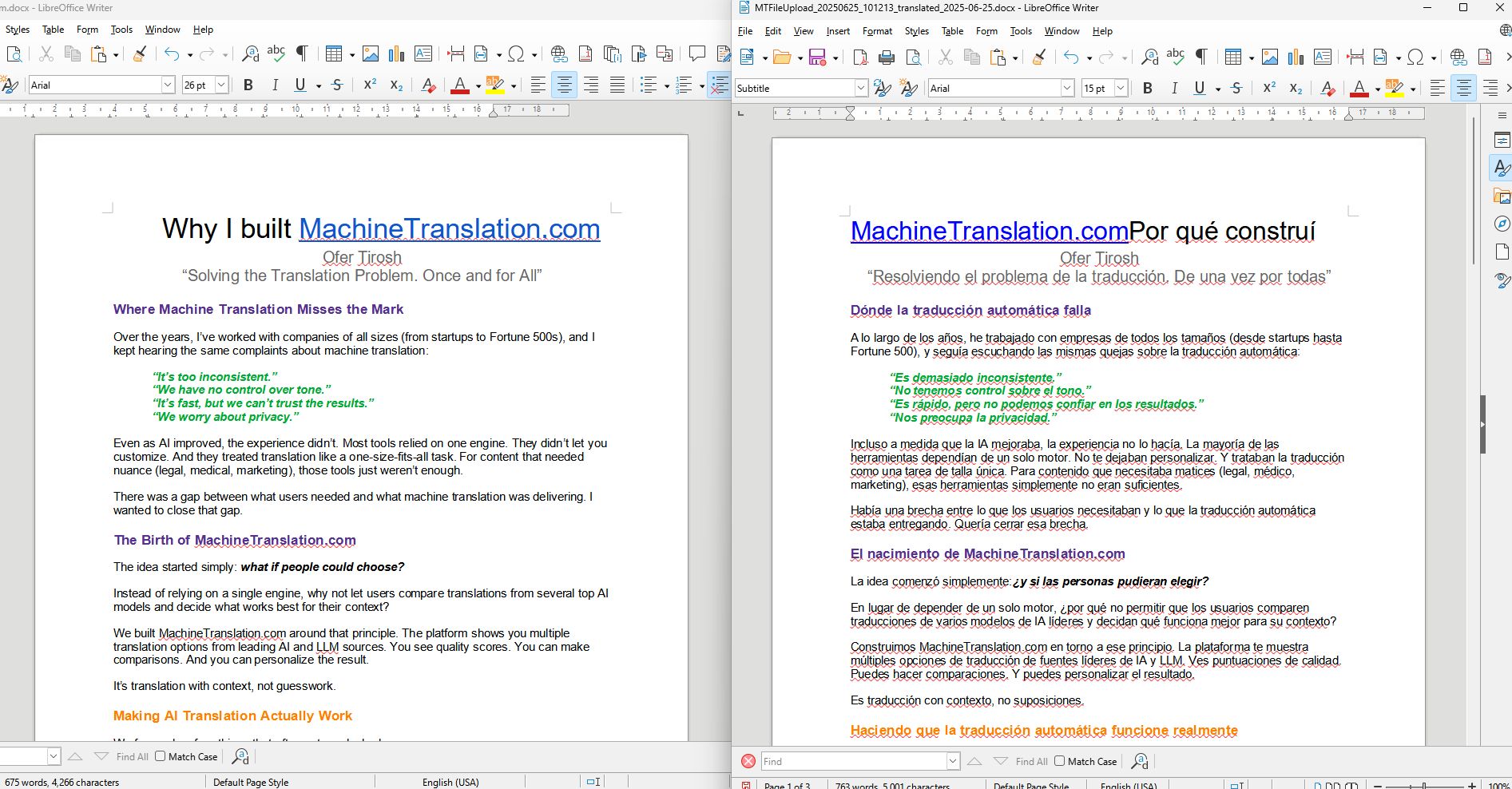
What can still go wrong:
Styles: If the original document uses custom named styles (e.g., "Contrato_Encabezado" instead of "Heading 1"), some tools will lose or rename those styles on export, which breaks downstream editing.
Tracked changes: Documents with tracked changes or comments may confuse text extraction if the tool does not handle revision markup correctly.
Embedded objects: Images with embedded text, or text boxes that are not part of the main document flow, are often not translated at all – or are translated but repositioned.
Best practice: before uploading a Word file for translation, accept all tracked changes and flatten any embedded objects. This produces a cleaner extraction.
Translating Spanish PDF documents
For PDFs, the rule of thumb is: the simpler the PDF, the better the output. A one-column academic paper or a standard legal contract will translate with reasonable layout fidelity. A brochure with a three-column layout, curved text, and overlapping image-text blocks will not.
If your PDF was originally created in Word, the single best option is to go back to the source Word file and translate that instead. The PDF is a lossy export of the Word file – you lose structural information when you export to PDF, and you cannot fully recover it during translation.
For PDFs where no source file exists (scanned documents, third-party files), look for a tool that uses both OCR and layout analysis (not just text extraction) and that exports the result as an editable Word or HTML file rather than a PDF replica. An editable output means you can fix formatting issues manually in a familiar environment.
Translating Spanish PowerPoint (.pptx) presentations
PowerPoint files are structured around slides with fixed text boxes, and text boxes in PowerPoint do not automatically resize. This makes word expansion a significant issue: translated text that is longer than the original will overflow its text box without any visible warning.
Translation tools that handle .pptx files well will either auto-resize font sizes to fit the original box dimensions, or flag boxes where overflow has occurred. Tools that do not handle this will silently truncate or overflow text.
Additional challenges in PowerPoint translation:
Speaker note: Often not included in the translation unless the tool explicitly supports notes extraction.
Master slide text: Text embedded in the slide master (repeated headers, footers, legal disclaimers) may not be translated if the tool processes only slide content.
SmartArt: Diagrams built with SmartArt are treated as graphics rather than editable text by many translation tools, and will not be translated.
How MachineTranslation.com handles document formatting during translation
What happens to tables, columns, and bullet points
MachineTranslation.com's document translation processes the structural elements of Word and PDF files independently rather than extracting all text as a single block. Tables are translated cell by cell, preserving the row-and-column structure. Bullet and numbered lists retain their list type and indentation. Multi-column layouts are processed column by column rather than as a single merged text stream.
Internal test results with structured Word documents (files containing two to four column tables, multi-level bullet lists, and mixed heading styles) show that MachineTranslation.com preserves table cell boundaries and list formatting in the output file. Where text expansion causes a cell to overflow, the cell expands rather than truncating the translated text, which means no content is lost even if minor manual resizing is needed.
Font and style retention
For Word documents, MachineTranslation.com retains the font families applied in the original document. If the original uses a custom font that is not installed on the output system, the file will reference that font name in the style definition – the same behavior as any Word file shared between machines with different font libraries. The font is not replaced or substituted during translation.
Heading styles, paragraph styles, bold, italic, underline, and color formatting are preserved at the character and paragraph level. Custom named styles are retained as-is in the output .docx file.
Step-by-step: translating a Spanish document on MachineTranslation.com
The following steps apply to Word, PDF, and PowerPoint files.
Go to MachineTranslation.com and select the document translation feature from the main interface.

Set your language pair. For Spanish-to-English translation, select Spanish as the source language and English as the target. MachineTranslation.com supports both Latin American Spanish and Castilian Spanish, select the regional variant that matches your source document if the distinction matters for your content. Visit the Spanish to English translation page for a direct translation option.
Upload your file. Drag and drop or use the file browser. MachineTranslation.com accepts .docx, .pdf, .pptx, and several other document formats. File size limits apply, check the current limits on the upload screen for your plan.
Select your models or customize the result. MachineTranslation.com routes your document through up to 22 AI models. You can also select a specific model manually if you have a preferred provider for your use case (e.g., DeepL for European Spanish, Google for Latin American content).

Download the translated file. The output file will be in the same format as the input. Open it in your source application (Word, Acrobat, PowerPoint) and review the layout. For Word and PowerPoint files, check: table column widths, bullet list indentation, heading styles, and any text boxes for overflow.
Make targeted manual adjustments. Common post-translation fixes:
Widen table columns if translated text is longer than the original Spanish
Resize text boxes in PowerPoint where text has overflowed
Recheck page headers and footers, which should be translated but may need positional adjustment
Format preservation checklist before you translate
Use this before uploading any document to a translation too
For Word documents
- [ ] Accept all tracked changes and delete all comments
- [ ] Check for embedded text in images, translate these manually and update the image after translation
- [ ] Verify that text boxes are part of the main document flow, not floating objects
- [ ] Note any custom paragraph styles, check the output file uses the same style nam
For PDFs
- [ ] If the PDF was generated from Word or InDesign, use the source file instead
- [ ] If the PDF is scanned, ensure the scan resolution is at least 300 DPI for accurate OCR
- [ ] Identify any multi-column sections, these will need manual review in the output
- [ ] Check whether tables in the PDF are rendered as table grids or as text positioned in columns, only proper table grids translate clean
For PowerPoint
- [ ] Check for text in the slide master, translate these strings separately if your tool does not handle master slides
- [ ] Note all SmartArt elements, these will require manual translation after the file is processed
- [ ] Review speaker notes, confirm whether your tool includes notes translation
- [ ] After translation, check every text box for overflow (red resize handle in PowerPoint indicates text overflow)
Comparing document translation tools: what actually preserves formatting?
Several tools handle document translation, and their formatting fidelity varies significantly. The comparison below focuses on the factors that matter most for Spanish document translation:
Feature | MachineTranslation.com | Google Translate (document) | DeepL (document) | Word built-in translation |
Word (.docx) table preservation | ✅ Cell-by-cell | ✅ Generally intact | ✅ Generally intact | ⚠️ Varies by complexity |
PDF layout preservation | ⚠️ Simple layouts | ⚠️ Simple layouts | ⚠️ Simple layouts | ❌ Not supported |
PowerPoint (.pptx) support | ✅ | ✅ | ✅ | ⚠️ Limited |
Custom font retention | ✅ | ⚠️ May substitute | ✅ | ⚠️ May substitute |
Multiple engine options | ✅ (20+ models) | ❌ (Google only) | ❌ (DeepL only) | ❌ (Microsoft only) |
Spanish regional variant selection | ✅ | ✅ | ✅ | ⚠️ Limited |
The key differentiator for MachineTranslation.com is model flexibility: rather than routing every document through a single translation model, MachineTranslation.com lets you compare the outputs of 22 AI models and select the translation that most of them agree on. For legal Spanish documents, that may be a different model than for marketing copy or technical manuals. No single model performs best across every domain, and having the choice matters when formatting and accuracy both have to hold up.
For more on English-to-Spanish and Spanish-to-English translation quality by content type, see the English to Spanish translation overview on MachineTranslation.com.
FAQs
1. Why does my translated Spanish PDF look different from the original?
PDFs store text as a visual layer rather than as structured, editable content. When a translation tool processes a PDF, it extracts the text, translates it, and then attempts to reposition the translated text in the same visual locations. For simple layouts, this works well. For multi-column documents, scanned files, or PDFs with embedded tables, the reconstruction is imperfect. The best solution is to use the original source file (Word, InDesign) for translation whenever it exist
2. Does translating a Word document change the fonts?
On MachineTranslation.com, font families specified in the original .docx file are retained in the translated output. If the output document shows a different font on your machine, it typically means the original font is not installed on your system – the same issue would occur with any Word document shared between machine
3. Why is my translated document longer than the original Spanish?
Spanish text typically runs 15-25% longer than equivalent English. When the original Spanish document was translated into English, the text contracted – which may leave empty space or visually unbalanced layouts. The reverse is also true: translating from English to Spanish will produce text that is longer, and may require layout adjustments to accommodate the expansion.
4. Can I translate a scanned Spanish document and keep the formatting?
Scanned documents are images, not text files. To translate them, the tool first needs to use OCR to identify the text. This works reasonably well for standard single-column scanned documents, but is unreliable for complex layouts, handwriting, or low-resolution scans. The output will rarely match the original layout precisely, expect to do manual reformatting after translation.
5. What is the best file format to use for translation if I need to preserve formatting?
Word (.docx) is the most translation-friendly format. It stores text in a structured XML format that translation tools can parse element by element, preserving tables, headings, bullets, and styles. PDF is the least translation-friendly for complex documents. If you must translate a PDF and have no access to the source file, export the translated output as an editable Word file rather than a PDF so you can fix any layout issues manually.