How to translate subtitles without losing timing: upload the SRT as a file, so the cue numbers and timecodes never pass through the translation. Then check two things before you publish: that the translated file has the same cues and timecodes as the source, and that each translated cue still fits its time window at a readable speed. The first check catches broken files. The second catches translations that are right but too long to read in time.
A subtitle file is a list of timed cues, so most of what goes wrong when you translate one goes wrong in the structure. Paste an SRT into a general-purpose chat window and the cue numbers, arrows, and timecodes become ordinary text to the model. They can be reworded, renumbered, or dropped, and nothing flags it until a video player rejects the file or the captions drift out of sync.
A file that survives translation can still fail a viewer. Preserved timestamps keep the original timing, and they do not make the translated text fit that timing. Translations often run longer than the English they replace, while a cue keeps the same seconds on screen. This guide covers both problems and gives you two short scripts: a 32-line checker, and a converter for WebVTT files.
Key Takeaways
Upload the .srt file instead of pasting its text, so cue numbers and timecodes never pass through the translation.
MachineTranslation.com returns subtitle files in SRT format with timestamps preserved. WebVTT and ASS are not on its supported list, so convert them to SRT first. A short script below does it for WebVTT.
Check structure first: the same number of cues, the same indexes, and the same timecodes as the source.
Then check fit. Netflix’s English (US) guide allows up to 20 characters per second for adult programs and 42 characters per line, and other languages have their own limits.
Fix a cue that runs too fast by condensing the text, splitting the cue, or extending it into the gap, then preview the file with the video before you publish.
On YouTube, add each translated SRT as its own language track and choose With timing.
How to translate subtitles without losing timing: the short answer
Upload the SRT file so only the caption text is translated and the timecodes stay as they are. Then run two checks: that the translated file has the same cues and timecodes as the source, and that each translated cue still fits its time window at a readable speed. Fix any cue that fails, and preview the file with the video.
Save your subtitles as an SRT file.
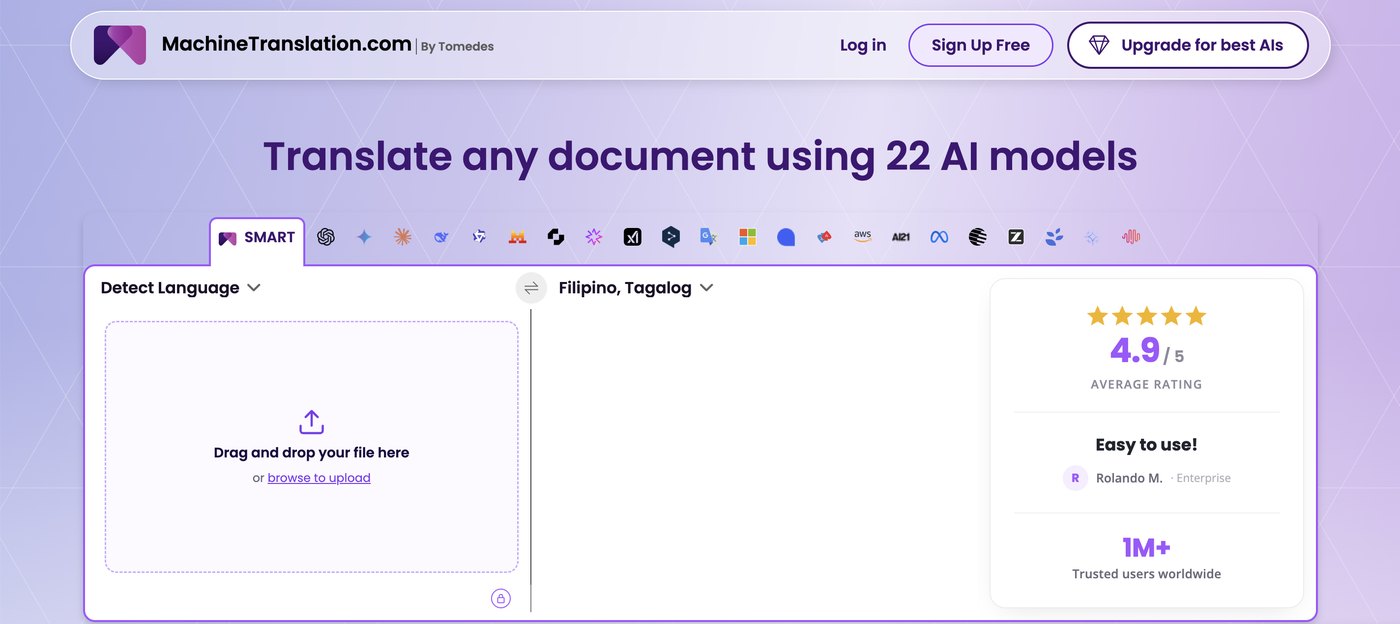
Upload the SRT on the Document translation page and choose the language.
Compare the cue count and timecodes with the source.
Check each cue’s characters per second and line length.
Fix the cues that fail, then preview the file with the video.
Timing can be lost in two ways. The file structure can break, or the text can stop fitting the window it was written for. They have different causes and different fixes, so the sections below take them one at a time.
The two checks. Uploading the file protects the structure. The fit check protects the reading.
What can break when you translate an SRT file?
An SRT file is plain text: a cue number, a timecode line, one or two lines of caption text, and a blank line, repeated for every cue. Six things go wrong with it, and each has a cheap check.
One SRT cue. The number and the timecodes have to come back identical. Only the caption text should change.
Where an SRT translation breaks
What breaks
Why it happens
What to check
Timecodes or cue numbers change
The file is pasted into a text box and the numbers are treated as text
Compare every index and timecode line with the source
Cues merge or drop
Sentences are rejoined across cue boundaries, or a long file is cut off
Compare the cue count with the source
Line breaks disappear
The translation comes back as one long line per cue
Look for lines over 42 characters and cues with more than two lines
Characters are garbled
The file is saved in the wrong encoding
Save as UTF-8 and read the accented and non-Latin characters
Tags and speaker labels change
Markup such as italics tags is translated or removed
Search the output for the tags and labels in the source
The platform rejects the file
The format is not SRT
Convert WebVTT or ASS to SRT before you translate
The Document translation page says MachineTranslation.com reads the file structure as well as the text, and that SRT files keep their timestamps and come back in SRT format. WebVTT and ASS are not on that page’s supported list, so convert them to SRT in a subtitle editor first.
SRT is on the page’s supported list. WebVTT and ASS are not listed.
Why does a correct translation still break the timing?
Because the window does not change. A cue stays on screen for the same number of seconds in every language, and reading speed is the number of characters divided by those seconds. Netflix’s English (US) Timed Text Style Guide allows up to 20 characters per second for adult programs and up to 17 for children’s, with 42 characters per line. Netflix publishes a separate guide for each language, so use the limits for your target language or your platform’s specification.
The fit problem on a frame. The window stays at 2.0 seconds while the Spanish text is longer than the English it replaces. Illustrative cue.
We wrote five illustrative English cues and a Spanish translation to show how this plays out. They are not output from a customer file or a platform run.
Three of the five illustrative cues, checked against the English (US) limits
Cue
English source
Spanish translation
Result
1
33 characters in 2.0 seconds, 16.5 per second
40 characters in 2.0 seconds, 20.0 per second
At the limit
3
39 characters in 2.0 seconds, 19.5 per second
42 characters in 2.0 seconds, 21.0 per second
Over 20 per second
5
Longest line 41 characters
Longest line 45 characters
Line over 42
Characters used against characters allowed. Allowance is 20 characters per second times each cue’s window. Computed from the five illustrative cues.
Cue 1 lands exactly on the limit. Cue 3 goes from 19.5 to 21.0 characters per second, so it fails even though the translation is faithful. Cue 5 stays readable at 18.0 characters per second, but its line grows from 41 to 45 characters and breaks the 42-character limit.
A cue that fails has three fixes: condense the text, split the cue at a natural break, or extend it into the gap before the next cue. Condensing keeps the timecodes. Splitting and extending change them on purpose, so make them in a subtitle editor and keep a note of the change.
Three fixes for cue 3. Condensing keeps the timecodes. Splitting and extending change them on purpose.
How do you translate an SRT file, step by step?
Six steps, in the order that protects the file.
Step 1: Start from a final SRT
Lock the source timing first, because every later change has to be repeated in every language. Save the file as UTF-8, and convert WebVTT or ASS to SRT first, as the VTT section below shows.
Step 2: Pin names and recurring terms
Character names, product names, and recurring terms have to read the same in every cue. Key Term Translations pins up to 10 terms per document and lets you choose one rendering for the whole file.
Step 3: Upload the file and choose your languages
Upload the .srt on the Document translation page. A subtitle file is far under the 70MB limit. MachineTranslation.com lets you add multiple files and multiple target languages in one session on every plan, as MultiLingual reported, so one source SRT can come back in several languages. Existing plan word limits still apply.
The upload step. The Document translation page before a file is added.
Step 4: Note where the models disagreed
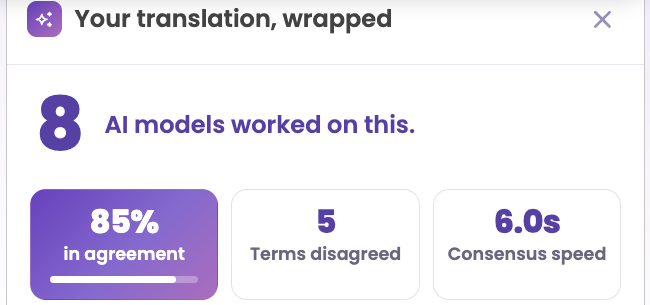
Open the consensus view, which runs your file through 22 models, and note the terms where they disagreed. Read those cues first in the last step.
The consensus panel. Example from a different document: 8 models, 85% in agreement, 5 terms disagreed.
Step 5: Run the structure and fit checks
We call this a preflight check. Run the script in the next section on each translated file. It stops when the cue count differs, reports any cue whose index or timecode changed, and lists every cue that is too fast, too long, or too tall.
Step 6: Fix the flagged cues and preview
Fix the flagged cues in a subtitle editor by condensing, splitting, or extending them, then rerun the check. Play the file with the video at the start, the middle, and the end, and read the cues the models disagreed on.
The result strip. File status, language pair, and the download button, from a different test.
Can you translate subtitles automatically with AI?
Yes. Upload an SRT you already have, choose the language, and MachineTranslation.com returns it translated, in SRT format, with the timestamps preserved. Every cue runs through 22 AI models in parallel, and the platform returns the translation most of them agree on.
Running 22 models sounds like it should be slow. Latency is set by the slowest model, so 22 models do not take 22 times as long as one, as we describe in our post on XLIFF and MQXLIFF files. Used this way, MachineTranslation.com works as an AI subtitle translator that returns the same format you sent.
This is translation of a subtitle file you already have. If you need subtitles generated from the audio first, create the SRT with a transcription or captioning tool, then translate it. Automatic translation leaves the timing question open, so the structure and fit checks above apply to every file it returns.
How do you translate YouTube subtitles?
There are two jobs, and they have different steps. Creators add a translated subtitle track to their own video. Viewers turn on translated captions while watching.
If you are the creator
Start from the SRT of your original-language captions, translate it as a file, run the checks, and then add it in YouTube Studio. YouTube Help gives the path: open Subtitles from the left menu, select the video, click Add language and choose the language, click Add under Subtitles, choose Upload file, pick With timing, select the file, and save. YouTube’s supported-files page lists SubRip (.srt). Add each language as its own track.
YouTube reads the timestamps from your file when you choose With timing, so a cue that runs too fast on your machine runs too fast on the channel. Check reading speed in the new language before you save.
If you are the viewer
Turn captions on in the player, open the caption settings, and choose Subtitles/CC. If your language is missing from the list, click Auto-translate and select it, as YouTube Help describes. That setting is for your own viewing, so a creator who wants other viewers to have a language needs to upload a track.
How do you translate a VTT file?
Convert it to SRT, translate the SRT, and convert back if your platform needs VTT. MachineTranslation.com’s supported list includes SRT, and WebVTT is not on it.
The two formats are close relatives. MDN’s reference describes a WebVTT file as starting with the WEBVTT line, with timestamps written as mm:ss.ttt or hh:mm:ss.ttt, a period before the milliseconds, an optional cue identifier, and optional cue settings and NOTE blocks. SRT numbers every cue, uses a comma before the milliseconds, and has no header.
One cue, two formats. Converting changes the header, the millisecond separator, and what a cue can carry.
The script below converts in both directions, based on the file extension. It drops cue settings, NOTE blocks, and style blocks on the way to SRT, so re-add positioning in your subtitle editor if you need it. It needs only Python 3 and has 26 lines.
import re, sys

TIME = r"((?:\d+:)?\d{2}:\d{2}[.,]\d{3})"

def to_srt(text):
    cues, n = [], 0
    for block in re.split(r"\n\s*\n", text.replace("\r\n", "\n").lstrip("\ufeff").strip()):
        lines = block.split("\n")
        if lines[0].startswith(("WEBVTT", "NOTE", "STYLE", "REGION")):
            continue
        i = next((k for k, x in enumerate(lines) if "-->" in x), None)
        m = re.match(TIME + r"\s*-->\s*" + TIME, lines[i]) if i is not None else None
        if not m:
            continue
        a, b = [(t if t.count(":") == 2 else "00:" + t).replace(".", ",") for t in m.groups()]
        n += 1
        cues.append(f"{n}\n{a} --> {b}\n" + "\n".join(lines[i + 1:]))
    return "\n\n".join(cues) + "\n"

def to_vtt(text):
    return "WEBVTT\n\n" + re.sub(r"(\d{2}:\d{2}:\d{2}),(\d{3})", r"\1.\2", text.replace("\r\n", "\n").lstrip("\ufeff"))

if __name__ == "__main__":
    src = open(sys.argv[1], encoding="utf-8").read()
    out = to_srt(src) if sys.argv[1].lower().endswith(".vtt") else to_vtt(src)
    sys.stdout.write(out)
Run it as python3 subtitle_convert.py sample.vtt > sample.srt. On a sample file with a header, a note, an identifier, cue settings, and short timestamps, it prints this:
1
00:00:01,000 --> 00:00:03,000
Tenemos que hablar sobre el presupuesto.

2
00:00:03,200 --> 00:00:05,200
Ya es muy tarde.

3
01:00:05,400 --> 01:00:07,400
¿Puedes enviarme el archivo
hoy, por favor?
Run the cue count and timecode check from the next section on the converted file before you translate it, and again on the translation. ASS files carry styling this script does not read, so convert those in a subtitle editor.
How do you check a translated SRT file automatically?
The script below parses the source and the translated SRT, stops if the cue counts differ, reports any cue whose index or timecode changed, and flags cues that exceed the limits you set. It needs only Python 3 and has 32 lines.
import re, sys

MAX_LINE, MAX_LINES, MAX_CPS = 42, 2, 20.0   # English (US) limits; use your target language's values

def parse(path):
    text = open(path, encoding="utf-8-sig").read().replace("\r\n", "\n").strip()
    cues = []
    for block in re.split(r"\n\s*\n", text):
        rows = block.split("\n")
        m = re.match(r"(\d+):(\d+):(\d+),(\d+) --> (\d+):(\d+):(\d+),(\d+)$", rows[1].strip())
        h1, m1, s1, ms1, h2, m2, s2, ms2 = map(int, m.groups())
        start = h1 * 3600 + m1 * 60 + s1 + ms1 / 1000
        end = h2 * 3600 + m2 * 60 + s2 + ms2 / 1000
        cues.append({"index": rows[0].strip(), "time": rows[1].strip(), "lines": rows[2:], "dur": end - start})
    return cues

src, out = parse(sys.argv[1]), parse(sys.argv[2])
print(f"cues: source {len(src)}, translated {len(out)}")
if len(src) != len(out):
    sys.exit("STRUCTURE: cue counts differ, stop and find the merged or dropped cue")
for a, b in zip(src, out):
    if (a["index"], a["time"]) != (b["index"], b["time"]):
        print(f"STRUCTURE: cue {a['index']} index or timecode changed")
    chars = sum(len(x) for x in b["lines"])
    cps = chars / b["dur"]
    longest = max(len(x) for x in b["lines"])
    flags = []
    if cps > MAX_CPS: flags.append(f"{cps:.1f} cps")
    if longest > MAX_LINE: flags.append(f"line of {longest} chars")
    if len(b["lines"]) > MAX_LINES: flags.append(f"{len(b['lines'])} lines")
    if flags: print(f"cue {b['index']}: " + ", ".join(flags))
print("done")
Run it as python3 srt_check.py source_en.srt translated_es.srt. On the five illustrative cues it prints this:
cues: source 5, translated 5
cue 3: 21.0 cps
cue 5: line of 45 chars
done
On a translated file where two cues were merged into one, it stops at the first check:
cues: source 5, translated 4
STRUCTURE: cue counts differ, stop and find the merged or dropped cue
The limits at the top are the English (US) values. Replace them with the values for your target language or your platform. The script checks structure and timing. It does not judge whether a translation is right, so read the text for meaning too.
When should a professional subtitler take over?
AI translation plus these checks suits internal videos, training material, and channels where you control the file. Deliveries to a streaming service or a broadcaster come with a written specification and a quality check, and burned-in subtitles cannot be corrected after export. For those, a professional subtitler works from the platform’s rules. Tomedes’ video translation service delivers time-coded subtitle files such as SRT and VTT, or burns the subtitles into the video, and offers AI video translation with human review.
With the file uploaded, the structure confirmed, and every cue checked against the reading speed limit, you can publish translated subtitles that keep the timing of the original. You can upload your SRT file on the Document translation page.
Frequently asked questions
1. Does subtitle translation break the timing?
It can, in two ways. Pasting an SRT into a text box can alter the cue numbers and timecodes, so upload the file instead. A faithful translation can also run longer than the English, so a cue may need more reading time than its window allows. Compare cue counts and timecodes, then check characters per second for every cue.
2. How do I translate an SRT file to English?
Upload the .srt file on MachineTranslation.com's Document translation page, choose English as the target language, and download the translated SRT, which keeps its timestamps. Then compare the cue count and timecodes with your source, and check each cue's reading speed against the limit for English before you publish.
3. How do I auto-translate an SRT file for free?
MachineTranslation.com's Document translation page says it is free to start with no account required. On the Free plan, long files show a partial preview, and the full translation unlocks at $2.50 per 300 words or on a paid plan. Check the plan limits against your file's word count before you start.
4. Can ChatGPT translate an SRT file?
A chat assistant can translate subtitle text, but pasted cues are ordinary text to the model, so numbers and timecodes can be altered, and long files can hit length limits. Uploading the SRT to a tool that returns SRT format avoids that. Either way, compare cue counts and timecodes with your source, and check each cue's reading speed.
5. Can DeepL translate SRT files?
DeepL's own SRT page says it supports SRT files and leaves the timecodes untouched, and that SRT translation needs a paid plan or the API. Whichever tool you use, compare cue counts and timecodes with your source and check each cue's reading speed, because a translation can keep its timecodes and still run too fast.
6. How do I translate YouTube subtitles?
In YouTube Studio, open Subtitles, select the video, click Add language, then Add under Subtitles, choose Upload file, pick With timing, and select your translated SRT. YouTube Help lists SubRip (.srt) among supported files. Add each language as its own track, and check reading speed in the new language first.
7. How do I turn on auto translate on YouTube?
Turn captions on in the player, open the caption settings, and choose Subtitles/CC. If your language is missing from the list, click Auto-translate and select it, as YouTube Help describes. It is a viewer setting for your own viewing, so a creator who wants other viewers to have a language should upload a subtitle track.
8. How do I add subtitles to a video?
On YouTube, open YouTube Studio, select Subtitles, pick the video, click Add language, then Add, and choose to upload a file, type the text, or use auto-sync. Translate your SRT first, then add each language as its own track. Most video players and editors also accept an SRT as a separate subtitle track.
9. Does MachineTranslation.com support VTT or ASS subtitle files?
SRT is the subtitle format on the Document translation page's supported list. WebVTT and ASS files are not listed, so convert them to SRT first, translate the SRT, then convert back if your platform needs the original format. Check the timecodes after each conversion.
Shashank leads engineering at Tomedes, where he's responsible for making 22+ AI models run as one platform without anyone noticing the complexity underneath. He writes about how AI translation actually gets built and kept running plus the architecture decisions, the performance trade-offs, and the parts that only look simple from the outside.