October 15, 2026
How to translate a large document without hitting limits
Upload the whole file instead of pasting it, keep it under 70MB, and choose your plan before you start. Four limits decide whether a long document goes through on MachineTranslation.com: the 70MB file size, the 3,000-word text box, and the free-plan preview on long content. Each one has a way around it.
A large file can stall in four places before any translation starts. Most uploaded files stay well inside the size and daily limits. The median file that paying users uploaded between April and June 2026 was nearly 6,000 words, and more than a million words of documents go through the platform every day.
An employee handbook of about 54,000 words, roughly 95 pages, is about nine times that median, which makes it a fair stress case for the large files people ask about: policy manuals, research reports, books, and legal bundles.
This guide uses that handbook as the worked example for each limit, then ends with five checks to run on any long translation. For why general-purpose tools struggle with big files in the first place, see our explainer on large-file limits.
Key takeaways before you upload a big file
- Upload the file itself. The text box takes 3,000 words per click, so a long document pasted in pieces becomes dozens of unconnected translations.
- The file limit is 70MB on the Free and Pro plans, and files that heavy are usually heavy because of images.
- On the Free plan, long content may show a partial preview first. The full translation needs a one-time unlock, a 24-hour plan, or Pro.
- Avoid splitting. Documents processed in fragments showed 28% more terminology inconsistency in our internal analysis. If you must split, cut at chapter breaks and lock your key terms.
- Original-layout downloads are subject to fair use.
What limits will you hit on a large document?
These come from the pricing page and the document translation page. They are the three that matter for large files.
The three limits
What the plan does with a long file matters as much as the limits do, so here is the comparison on the points that affect large documents.
| Limit | What it is | When you hit it | The way around it |
|---|---|---|---|
| Text box | 3,000 words per click | When you paste a long text | Upload the file instead |
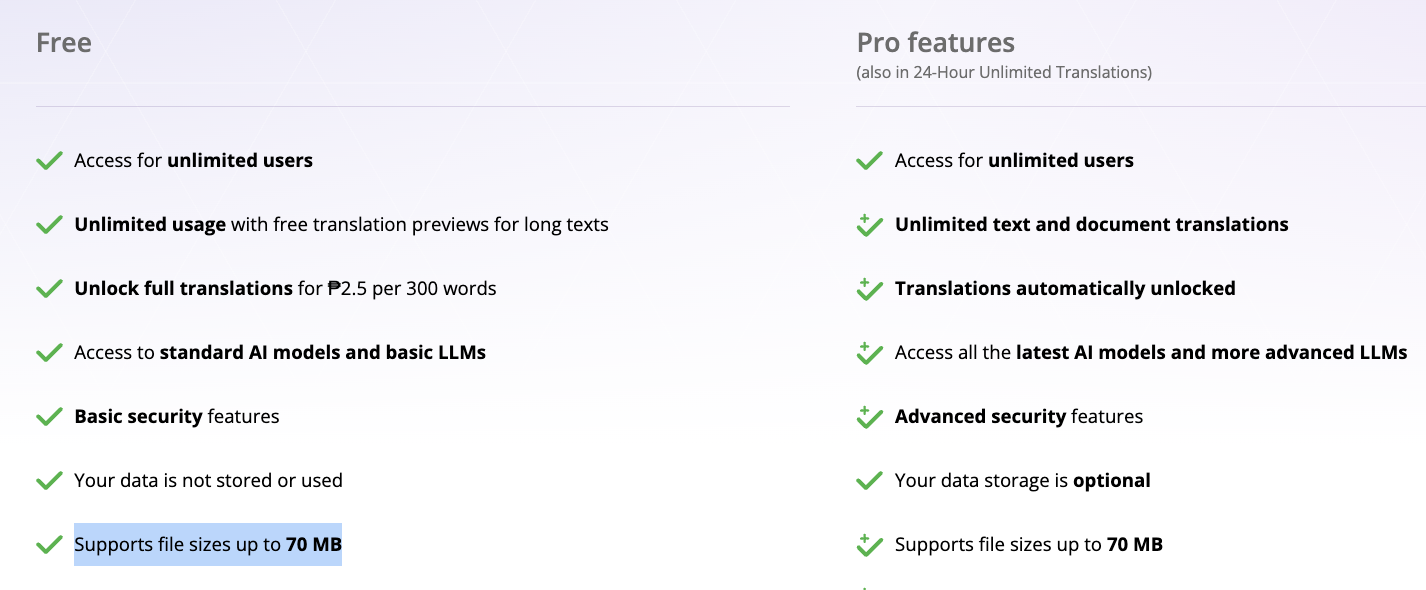
| File size | 70MB per file on Free and Pro | Image-heavy PDFs and scans at print resolution | Reduce image quality before splitting anything |
| Free-plan preview | A partial free preview of long content, within daily and lifetime fair-use limits | Any long document on the Free plan or with no account | Unlock the full translation, or use a 24-hour plan or Pro |
| Point | Free or no account | Pro and 24-hour plan |
|---|---|---|
| Long documents | Partial free preview first, with the full translation unlocked by a one-time payment | Full translations unlocked automatically |
| Download format | Plain text, per the pricing page | Original document format, within fair use |
| File size | Up to 70MB | Up to 70MB |
| Human Verification | On demand | 2,000 words a month included |
How do you translate a very large PDF or Word file, step by step?
Six steps, in the order that avoids surprises.
Step 1: Check the size, the word count, and the plan
Right-click the file for its size in MB, read the word count in your editor, and decide which plan the job needs, using the table above. A scanned PDF has no selectable text, so we read it with OCR before translating and return an editable Word file. Plan around that output format.
Step 2: Upload the file, not the text
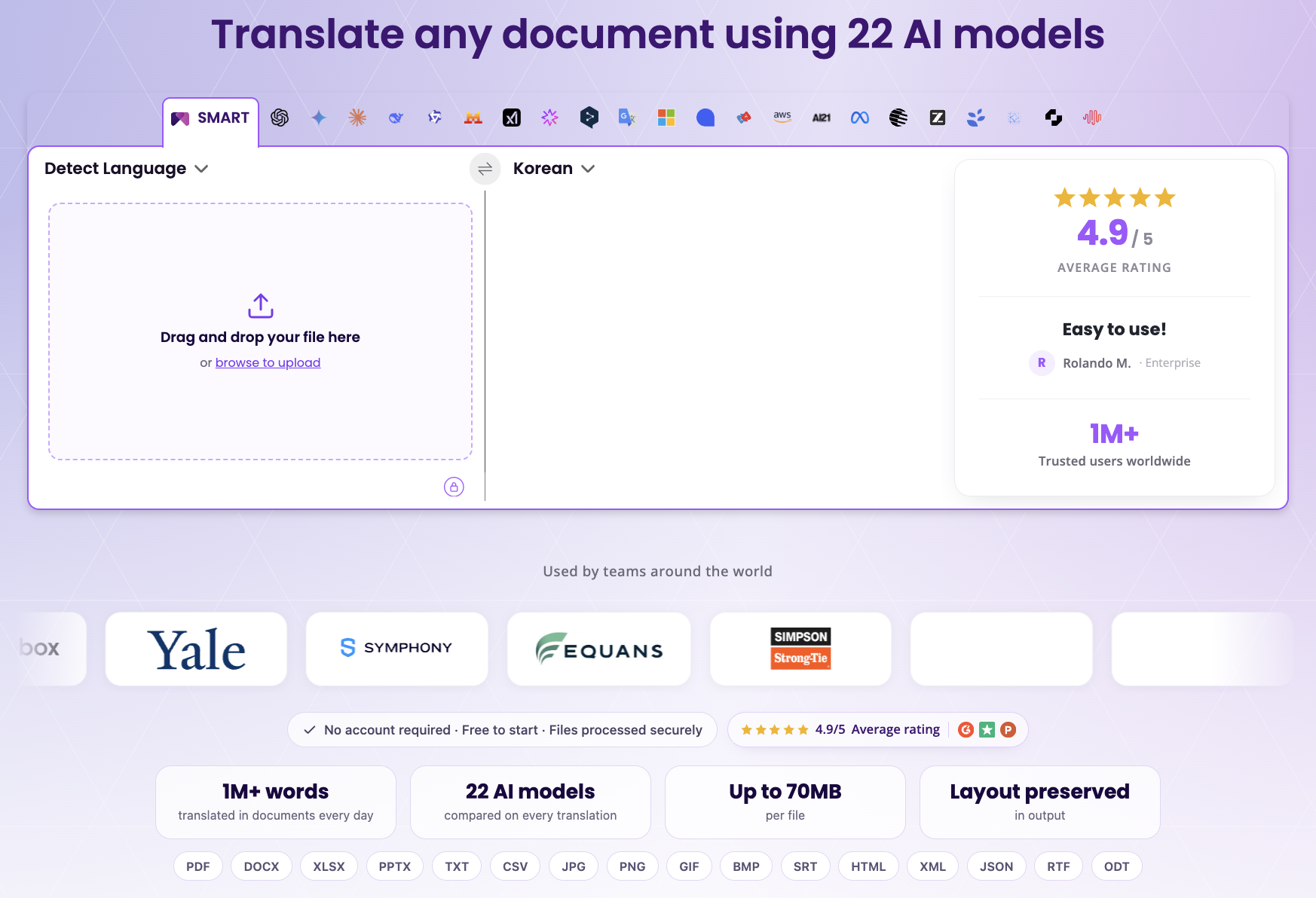
The text box translates up to 3,000 words per click. Our 54,000-word handbook pasted that way would be 18 separate translations, each done without knowledge of the others.
A file upload works differently. The platform reads the file's structure as well as its text, and it runs up to 22 models on the full document. Drag the file into the upload box on the document translation page. It accepts PDF, Word, Excel, PowerPoint, text, CSV, subtitle, HTML, and image files up to 70MB.
Step 3: If the file is over 70MB, shrink it before you split it
Text takes very little room. Our sample handbook is about 32KB as a Word file. A different sample we built, a 23-page report with full-resolution photos, came to 80.5MB, which is over the limit on the Free and Pro plans. The same report with smaller photos is 5.2MB.
Scans at print resolution, embedded photos, and pasted screenshots are what push a file over. Reduce the image quality with a PDF compressor or your editor's export options, then check the new size before you upload.
Step 4: Pick how you will get the full translation
On the Free plan or with no account, a long document may show a partial free preview first. The full translation is unlocked with a one-time payment, listed on the pricing page at $2.50 per 300 words, or by moving to Pro or a 24-hour plan, which unlock translations automatically.
Because the unlock price follows length, it adds up on a long file. At that rate our handbook is about 180 blocks of 300 words. Compare the unlock price with the price of a 24-hour plan or Pro before you upload anything big.
Step 5: Upload, wait for the email, and download
After you upload, a banner says processing may take a few minutes and offers to email you a copy. The tracking email says the file usually arrives within a few minutes, and a second email carries the download link.
Most of the work on a large file happens after you click upload, and you are not meant to watch it. In an earlier test, a short Word contract went from upload to download-ready in about a minute. Behind the banner, translated sections are rebuilt into the file's own structure as they finish, instead of after the whole document completes.
Step 6: Check three pages and the key terms
Run these five checks on the downloaded file.
- The first page: title block, header, and footer.
- A page with a table: column widths and header shading.
- The last page: that it exists and reads to the end, since a preview stops short.
- Three key terms: search each one across the document and count how many different translations appear.
- Numbers, dates, and names.
The key-term check earns its place on long files. In our sample handbook, “Review Period” appears about 800 times and “Escalation Contact” about 560 times, so one wobbly translation of either term shows up across the whole file. Key Term Translations is built for this: it shows the best translation options for critical terms, up to 10 per document, and lets you choose and enforce the rendering you want across the full file.
For very long documents, the platform shows the source and the translation side by side, segment by segment, so you can review line by line without losing sight of the whole document.
Should you split a large document into smaller files?
Not unless a limit forces you to. A fragment is translated without knowledge of how the other fragments were rendered, so terms and phrasing drift. A single upload lets the 22 models work on the full document, so every repeat of a defined term goes through the same process.
“Documents processed in fragments showed a 28% higher rate of terminology inconsistency than documents processed whole in our internal analysis. When each section is translated without knowing how the others were rendered, terms and phrasing drift across sections.” - Rachelle Garcia, AI Lead at Tomedes (translation company that developed MachineTranslation.com)
That finding is published in our guide to getting better results from AI translation.
When a limit does force a split, cut at chapter or section breaks, never mid-section. Before you start, choose up to ten terms that must not change: defined terms, product names, and people. Translate every part in the same language pair and on the same plan, then search each key term across all the parts and count the variants.
If a file has to be split, keep the first page of the original beside each translated part, so the headings and numbering line up when the parts are put back together.
When should a person review a large translation?
Large documents are often the ones with consequences: a policy manual people will follow, a research report, a legal bundle. Human Verification adds a qualified professional to review the output, and the pricing page lists 2,000 words a month of it as included with Pro.
Two thousand words is about 4% of a 54,000-word file. On a long document, point the review at the sections that carry the weight: the defined terms, the legal clauses, and the numbers. You can upload your document on the document translation page: check the size and the plan first, then send the whole file.
Frequently asked questions
1. How do I translate a very large PDF?
Check that the file is under 70MB, upload the PDF itself instead of pasting its text, and choose a plan that unlocks the full translation, because the Free plan may show only a partial preview of long content. If the file is over 70MB, reduce its image quality first, since images account for most of the size of a heavy PDF.
2. Is there a way to translate an entire PDF document?
Yes. MachineTranslation.com translates the whole file, not a preview, once the plan you are on unlocks the full translation, and returns it as a PDF. Scanned PDFs are read with OCR and come back as an editable Word file.
3. Can ChatGPT translate an entire document?
A chat window can translate a document within its own length limits, with one model's judgment on every section. MachineTranslation.com runs ChatGPT as one of 22 models and returns the version most of them agree on, and you upload the whole file in one step.
4. Can Google Translate translate large documents or PDF files for free?
Every tool sets its own file-size, length, and pricing limits, and they change, so check the tool's own help page for current numbers. On MachineTranslation.com you can start free with no account: the file limit is 70MB on the Free and Pro plans, long content may show a partial preview first, and the text box takes 3,000 words per click.
5. Can I translate a large PDF from Hindi to English?
Yes. Hindi is one of the 330+ languages MachineTranslation.com supports, and you can upload a document in any supported language and choose any target language. The same limits apply: 70MB per file and a partial preview on the Free plan for long content.
6. What is the file size limit for document translation?
Up to 70MB per file on both the Free and Pro plans. Text takes little space, so files near the limit are usually heavy because of images.
7. Is there a word limit for free translations?
Yes. Unregistered and Free plan users translate within fair-usage limits, including daily and lifetime limits, and longer content may show a partial free preview first. The full translation can be unlocked with a one-time payment or by subscribing to Pro. Limits can change over time.

By Shashank Jain
Connect on LinkedInShashank leads engineering at Tomedes, where he's responsible for making 22+ AI models run as one platform without anyone noticing the complexity underneath. He writes about how AI translation actually gets built and kept running plus the architecture decisions, the performance trade-offs, and the parts that only look simple from the outside.
Share:


