November 17, 2026
Compare a translated document with the original before you download it
A translated document can look finished and still be wrong in ways that are easy to miss. A product name gets translated when it should stay as written. A price switches to another number format. A heading slips out of place. None of it shows until someone opens the file, and by then the file has already been downloaded.
I lead product and AI at Tomedes, the translation company that develops MachineTranslation.com. Its document translator now includes File preview, a panel that shows the original and the translation of the same file with the download button in the same place. We built File preview so that the check happens before the download.
Key takeaways
- File preview shows the original and the translation of the same file in one panel, with the download button in the same panel.
- In a MachineTranslation.com layout test of a two-column PDF, both columns, a table, and a callout box held while a title block, a bullet list, and bold text slipped.
- In a single product-sheet sample, 1 of 4 product names was translated and 2 of 4 prices switched number format, which shows what kinds of failure occur and says nothing about how often.
- A median paying document runs 5,795 words against 38 words for a median translation across all paying activity, so errors in a document have far more room to hide.
- A preview shows differences and does not judge them, so high-stakes documents still need an agreement check and a professional reviewer.
Preview the translated document before you download it
File preview shows the original document and its translation in one panel after a file is translated. The original sits above the translation, each labeled with its language, and the download button for the translated file sits in the panel header. You check the result and download it from the same place.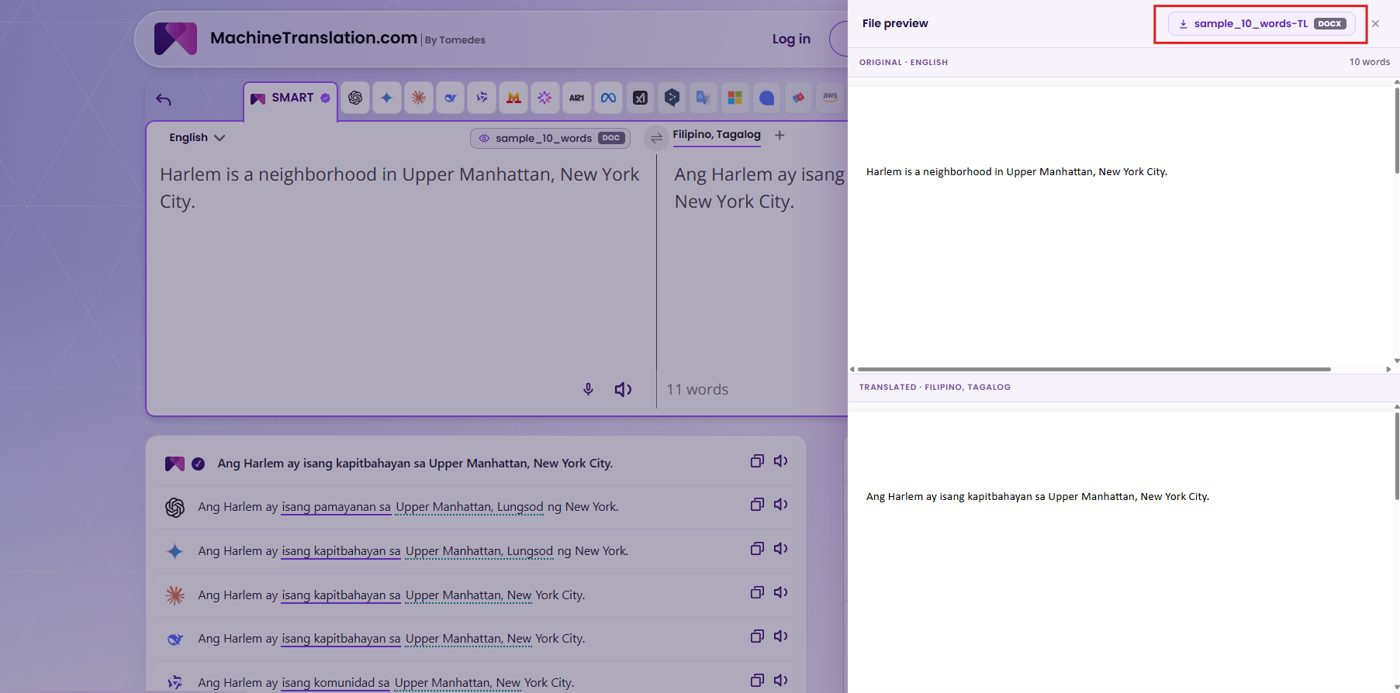
In the example, a 10-word DOCX translated from English into Filipino (Tagalog) shows its source sentence on top and the translated sentence below. The original shows its word count, and the file name and DOCX badge sit on the download button. Behind the panel, the translator lists the SMART result first, followed by the output of each model.
The panel's footer reads "Preview may differ from the original file." That line is accurate, and it sets the right expectation. The preview lets you review the content before you commit to a download. The downloaded file stays the final check.
A translated document needs a check before it is downloaded
A translated document can carry errors that are invisible until the file is opened, and AI translation gives no signal when they happen. Layout can slip, names can be translated that should stay as written, and numbers can change format. Each is easy to fix before the file is sent and costly to find afterward.
These failures are silent. The file opens, the text reads fluently, and nothing marks the place where a product name changed. In a MachineTranslation.com layout test, a one-page, two-column PDF translated from English to German by eight models kept both columns, a table, and a callout box in place, while a title block, a bullet list, and bold text slipped. The test is covered in the post on how to translate a book to read in your language.
Content fails in other places than layout does. In a test of a one-page product sheet translated from English to German, the pricing table kept its structure and a date callout came back with a German date. One of four product names was translated, and two of four prices switched format, for example from $249.00 to 249,00 $. It is a single sample that shows what kinds of failure occur and says nothing about how often, and it is described in the post on how to translate a product catalogue or website with AI.
Fixing a file afterward has a cost. In a benchmark of 50 marketing PDFs, pasting a PDF into a general-purpose chatbot reached 98% contextual accuracy but needed an average of 45 minutes of reformatting per 10-page document, while a design-first tool kept the visual layout in 92% of cases but produced too-literal translations in 28%. The details are in the post on how to translate a PDF without losing formatting.
People already feel this. In an internal MachineTranslation.com study, 34% of people said they were not confident enough in an AI translation to publish it without checking it first, and 46% of non-linguists said comparing AI outputs by hand cost them more time than the AI saved. The study sits behind the dedicated human project manager that comes with the Pro plan.
What to compare in a translated document
Compare four things first, which are names, numbers and dates, structure, and repeated terms. These are the items that fail silently, meaning the translation reads well and is still wrong. File preview puts the original and the translation in one panel, so each check is a quick look back and forth.
- Names that should stay as written, such as product names, brand names, and people.
- Numbers, prices, and dates. Whether a changed format is right depends on the target market, so decide on purpose.
- Structure, meaning headings, bullet lists, bold text, and tables.
- Terms that repeat, such as a role title or a defined term. A term translated two ways spreads quickly through a long file.
Repeated terms deserve the most care in long files. In a worked example in MachineTranslation.com's post on translating a large document, a 54,000-word handbook repeated one review-period term about 800 times and an escalation-contact term about 560 times. Both had to be translated identically each time.
Long documents hide errors for longer
Documents run far longer than the texts people usually paste, so errors have more room to hide. A median paying document on MachineTranslation.com is 5,795 words, while a median translation across all paying activity, mostly short pastes, is 38 words, a roughly 150-times difference.
A 38-word paste fits on one screen and gets read in full. A 5,795-word document does not, and the places where a name, a number, or a heading goes wrong are scattered through it. Checking the original and the translation in one panel keeps the reader inside the file.
What a preview cannot tell you
A preview cannot tell you whether a translation is right. It shows the original and the translation in one place so you can see differences, and it does not judge them. Judgment comes from model agreement, from your own check, and from a professional reviewer when a mistake would carry real consequences.
Model agreement is the first signal. MachineTranslation.com's research on how often AI models agree recommends treating a translation's agreement rate as a triage signal. Agreement of 90% or higher with zero or one disputed term is a reasonable candidate to ship as-is for most business content. Agreement in the mid-80s, or several disputed terms on one sentence, is content worth routing to a human reviewer, especially for contracts or product instructions.
For documents where a mistake carries real consequences, a professional translator can verify the output. The Pro plan includes on-demand human review for up to 2,000 words a month. File preview helps you decide which parts to send, because it lets you see the whole document before you commit to the download.
How to check a translated file before you send it
Upload the file, let SMART translate it, review the original and the translation in File preview, check the four things, and download the file from the same panel. The whole check happens before the file leaves the platform, and it takes a few minutes on a short document.
- Upload the file to the document translator. Files can be up to 70MB.
- Choose the language the document needs to be translated into.
- SMART runs 22 AI models on the full document.
- Open File preview and read the original above the translation.
- Compare names, numbers and dates, structure, and repeated terms against the original.
- Download the translated file from the same panel.
Upload a file, read the original and the translation in File preview, and download the file when it reads right.
Frequently asked questions
1. How do I translate an entire document?
Upload the whole file to MachineTranslation.com and choose the target language, and SMART runs 22 AI models on the full document. The translated file comes back in its original layout, up to 70MB per file, and File preview lets you compare it with the original before you download it.
2. Can ChatGPT translate documents?
Yes, a general-purpose chatbot such as ChatGPT can translate the text of a document, but pasting a PDF returns text without the original layout. In a MachineTranslation.com benchmark of 50 marketing PDFs, that route needed about 45 minutes of reformatting per 10-page document.
3. Can I translate a legal document myself?
Yes, you can translate one yourself with AI, but a mistake in a legal document can change obligations. Have a professional translator verify the result, and check whether the court or agency requires a certified translation. Every paid plan on MachineTranslation.com includes free human verification for up to 2,000 words a month.
4. How do I translate a printed document?
Scan or photograph the document and upload the PDF or image to MachineTranslation.com. The platform reads the text with OCR, runs it through 22 AI models, and returns the translation. For scanned PDFs, the translated output comes back as a DOCX file.

By Rachelle Garcia
Connect on LinkedInRachelle leads product and AI at Tomedes, where she runs the experiments that turn internal data into better translation experiences. She writes about what actually happens when you build AI products such as MachineTranslation.com — the numbers, the surprises, and the parts that don't go to plan.
Share:


